
App MD-ETARI.de for paint thickness gauges – available for download
Available for download via the buttons below in the App Store or Google Play


User manual for the MD-ETARI.de app
1. App installation
Android:
- Open the Google Play Store.
- Search for the app named MD-ETARI.de.
- Tap INSTALL.
- The app will be installed and checked by the system.
- Then tap Open to start the app.
Note: For the app to connect to the paint thickness gauge, location permission must be enabled for the app in the phone settings.
iOS (iPhone/iPad):
- Open the App Store.
- Search for the app named MD-ETARI.de.
- Tap the Get button and confirm the installation.
- After installation, start the app by tapping the “Open” button.
Your Bluetooth connection must be enabled in “Settings” so that the connection to the paint thickness gauge can be established.
2. Connecting to the paint thickness gauge
- Turn on the paint thickness gauge. The Bluetooth symbol must be visible on the display. (If no symbol appears, please follow the instructions in the device manual for Bluetooth activation to enable Bluetooth on the paint thickness gauge.)
- In the app, tap the Bluetooth symbol in the bottom menu bar.
- If no available device is shown in the Bluetooth menu, tap Start searching.
- The first time, a window appears where you allow Bluetooth to search for “Etari” Bluetooth devices.
- A serial number of the available device is shown. Tap this displayed number to pair the device with the app.
- As soon as the connection is established, the display switches to the home screen and the measurement process can begin.
3. Using the app
- If you are not on the home screen, tap “Home” in the bottom menu bar to go to the home screen.
- Select the vehicle type (e.g. Car, Klat, SUV, MPV).
Button on the left under the vehicle image. - Add a vehicle using the “Add car” button. If needed, enter the characteristics of your choice in the corresponding fields, or tap the “Save” button. (You can also edit this information later using the “Edit” button.) Button at the top left.
-
The following functions are available at the top of the home screen:
- Expert - measurement points are predefined
- Simple - free selection of measurement points
Other menu items:
- Edit: change vehicle characteristics
- 2D/3D: select the vehicle image display between 2D and 3D
- Number of measures: number of measurements, selectable for each body part from 3 to 10
- Share: send the measurement report after the measurement process
-
- Body parts to be measured are shown blinking in color on the vehicle image. Individual body parts are shown one after another and measured.
- The last item after measuring all body parts with the label "Other" is for any measurement points that are not explicitly shown on the vehicle image. This "Other" category is used for a part that is not shown in these fields, e.g. the rear panel.
- Select a vehicle image display: 2D or 3D.
- Select the number of measurements per body part before starting the measurement process (between 3 and 10). Note: If the number is reduced afterwards, the excess measurement values (difference to the original number) will be deleted.
-
- Carry out the measurements on the body parts shown blinking in color on the vehicle image exactly in the specified order.
- Pay attention to instructions provided by the app during the measurement process.
-
After completing the measurement process:
Tap Share at the top right. A window appears with the selection “Multicolor report” or “Single color report” - select the desired color type, enter a file name, and tap OK.
The measurement report is created, and a window is shown with frequently contacted people (e.g. from WhatsApp) as well as an app selection for sending the file.
Important: Do not leave the app before all steps are completed, otherwise the entered data will be lost.
Additional functions of the app in the bottom menu bar:
History: Under History, the measurement data of all vehicles you have saved can be accessed.
Settings: Under Settings you will find the following items:
-
Paint range: different paint thicknesses are preset and assigned to different classifications of paint thicknesses.
There is the option to change these paint thicknesses manually.
-
Switch parts: selection option between Automatic and Manual.
Automatic: during the measurement process, the app automatically guides you in a predefined order to the next body part.
Manual: the selection of the respective body part is made by tapping the desired body part in the list of body parts.
-
Sound:
The following options are available:
Measuring sounds: a beep sounds from the phone with each measurement.
Alarm sounds: if certain preset paint thicknesses are exceeded, an alarm tone sounds from the phone.
Measuring Vibrate: the phone vibrates with each measurement.
Alarm Vibrate: the phone vibrates if certain preset paint thicknesses are exceeded.
-
Language:
It is possible to select from available languages.
As of January 26, 2026
Top offers
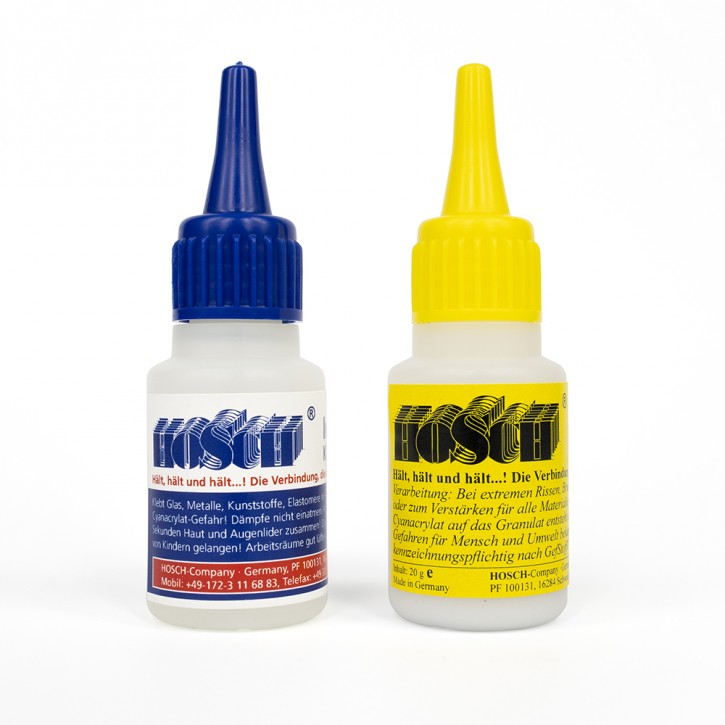
Hosch Industrial Super Glue, Fast Setting Adhesive and Granulate, The chemical weld Made in Germany
24,00 EUR RRP 25,63 EUR you save 6% (1,63 EUR)
incl. 19 % VAT excl. shipping costs
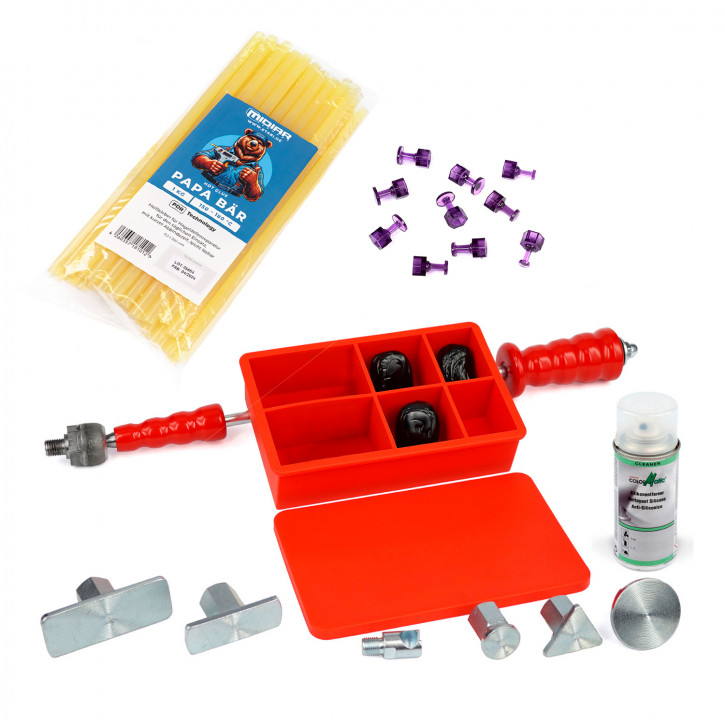
Pull hammer for cold glue – Cola Fria, PDR
192,00 EUR RRP 230,97 EUR you save 17% (38,97 EUR)
incl. 19 % VAT excl. shipping costs
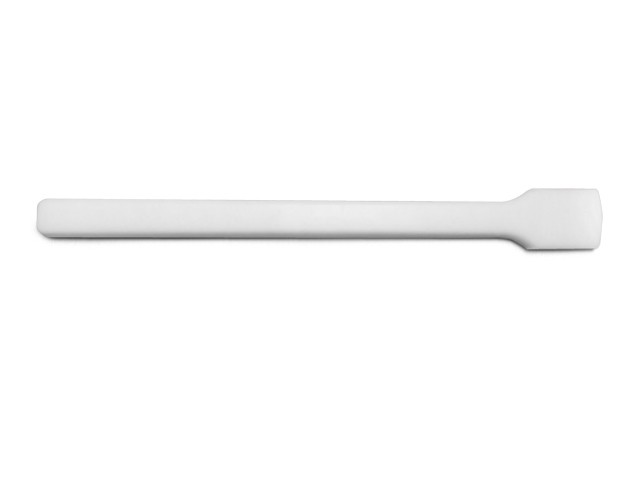
Teflon Paddle Plastic impact tool, PDRTool
37,00 EUR RRP 40,00 EUR you save 7% (3,00 EUR)
incl. 19 % VAT excl. shipping costs
New products
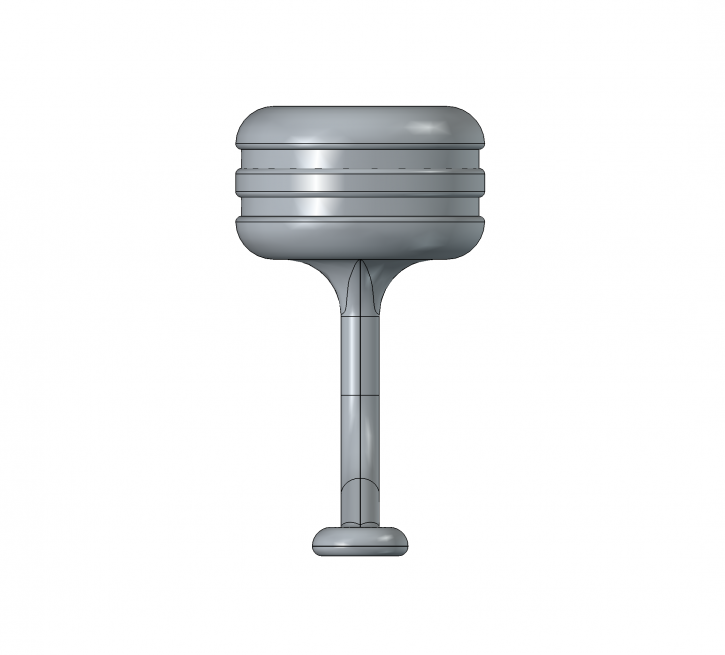
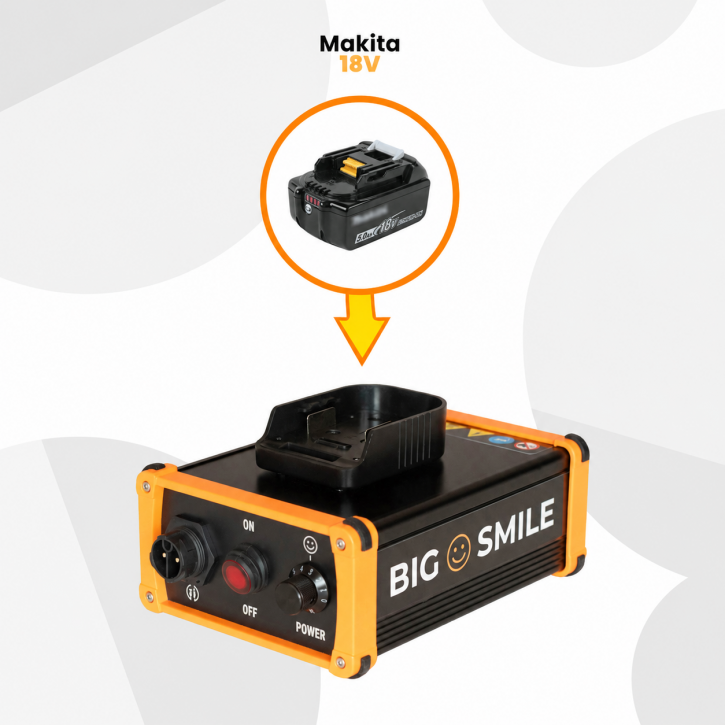
BIG SMILE - Cordless PDR Metal Stabilisation Tool for Makita 18 V LXT Batteries
1.200,00 EUR
incl. 19 % VAT excl. shipping costs